 Rackpulse
A Hetzner Cloud app for the Mac menu bar
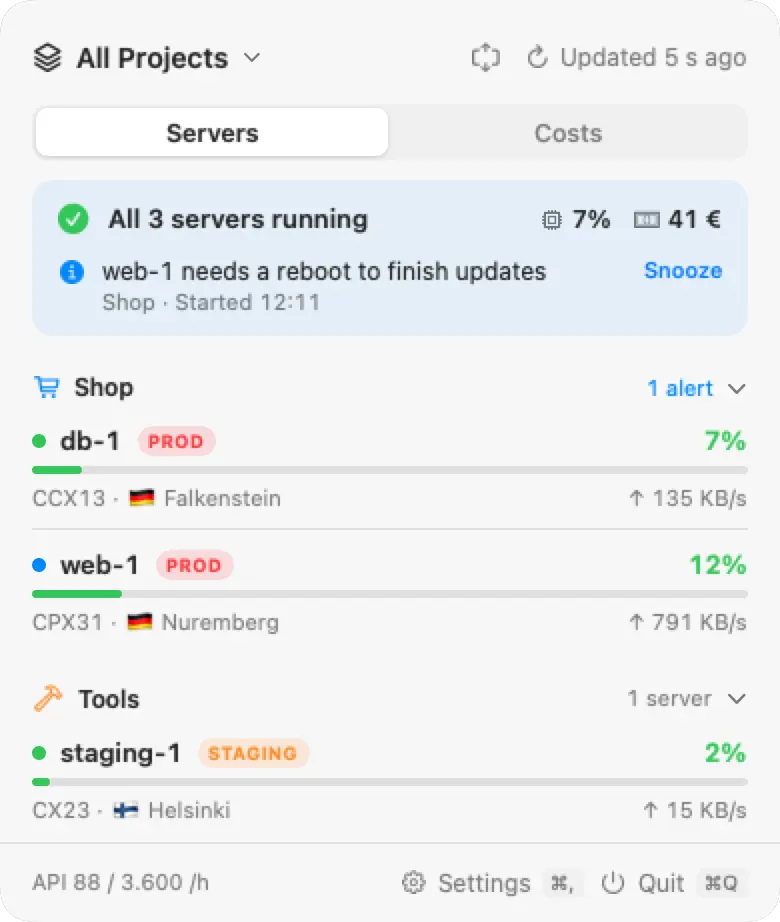
Rackpulse is a native macOS menu bar app for Hetzner Cloud. It shows the servers of all your projects, whether they are running, how busy they are, and what they cost this month. Click the icon or press ⌃⌥R from any app.
macOS 14 or later. Needs a Hetzner Cloud API token. Free and open source. No account, no telemetry.
Why a menu bar app
Without it, checking on servers means opening the Hetzner Console in a browser and going through each project one by one. A stopped server or a full disk can go unnoticed until something breaks, and the cost shows up on the invoice. Rackpulse keeps all of this one click away and sends a notification when something changes.
What the menu bar shows
- A status dot in the colour of the worst alert: green when all is fine, orange for a warning, red for a critical alert.
- An optional readout next to it: the busiest server's CPU, this month's cost, or the number of alerts.
What the panel shows
- One status line for all projects, for example "All 5 servers running" or "1 not running · 2 alerts".
- The server list, grouped by project, with problems sorted to the top. Each server can carry a Production, Staging, or Development tag. Each row has the CPU of the last hour, disk I/O, network, and traffic used.
- A page per server with charts for CPU, disk, and network from 1 hour to 30 days, 30 days of uptime, and buttons for SSH, copying the IP address, and the Hetzner Console.
- A Costs tab with the month to date, the forecast to the end of the month, and resources that bill but are not in use.
With the optional agent on a server, its page also shows memory, disk space, failed services, and Docker containers. Without the agent, nothing is installed on your servers.
Rackpulse, the Hetzner Console, and hcloud
| Tool | What it is for | Where |
|---|---|---|
| Hetzner Console | Every resource and setting, with graphs per server | In a browser, one project at a time |
hcloud CLI | Lists and changes resources from the terminal | In a terminal, one context (project) at a time |
| Rackpulse | Status, charts, uptime, costs, and alerts for all projects, and power actions | In the macOS menu bar, all projects at once |
Add your projects
- Download Rackpulse.dmg, open it, and drag Rackpulse to Applications.
- In the Hetzner Console, open a project, go to Security, then API tokens, and create a token with Read or Read & Write.
- Click the Rackpulse icon in the menu bar, paste the token, and click Verify and Save. Repeat for each project.
Tokens are stored in the macOS Keychain. Rackpulse only talks to the Hetzner API, its own update feed, and the agents you set up.
Questions and answers
Does it work with several Hetzner projects?
Yes. Add one API token for each project. The panel shows the servers of all projects together, grouped by project, and you can switch to a single project from the menu.
Which token permission does it need?
Read is enough to monitor. Choose Read & Write only if you want to start, shut down, reboot, power off, or reset servers from Rackpulse. With a Read token, Rackpulse can't change anything in your projects.
Does it show a Dock icon?
No. Rackpulse lives in the menu bar only.
Does it replace the Hetzner Console?
No. It shows status, charts, uptime, costs, and alerts, and it can send power actions. To create servers, change firewalls, or read invoices, use the Hetzner Console. The server page has a button that opens the server there.
Is it made by Hetzner?
No. Rackpulse is an independent open source project, not affiliated with Hetzner Online GmbH.